

Automation is the reason I love programming. I must confess I'm not the best developer, but I can't deny that I really enjoy it.
A friend, wanting to help people who are out of work, shared a job opportunity link in our church group—not knowing it was a scam, the infamous phishing, the social engineering that causes so many problems. I immediately opened the link, confirmed it was malicious, and warned everyone not to click on it. At that point, some people chimed in and I thought: what if I could build an application that connects to my WhatsApp and checks the category a link belongs to? I understand this won't defeat all phishing—those hackers who take over pages with expired certificates or buy sites that are already in commonly allowed categories—but I believe it can help reduce the impact of some known phishing campaigns.
In a future post, I plan to talk a bit about how to identify phishing in web pages, emails, or messages, in case you don't want to check the category or in case the site is miscategorized.
Understanding that this program doesn't aim to "Eliminate Phishing from WhatsApp," I consider it a proof of concept that will enable others to build useful tools to automate certain things in WhatsApp—like setting up a task that emails all your accounts every 5 minutes if you have an unanswered message from your wife 😊
Below, I'll present how I developed the program and how you can use it. For category verification, I used the public service from Fortinet (a brand I know and use)—you can visit FortiGuard WebFilter to try it out. Thanks to Fortinet for maintaining this public service. It's important to note that although I use Fortinet's website, this project is not tied to the company—you could use any public resource for the verification.
Programming Language
Initially, I intended to build it in C#. I even completed the category-checking part by passing in a link. I considered using the FortiGate 80CM I have at home, but I decided to implement it as a web solution, in case someone wanted to try it out.
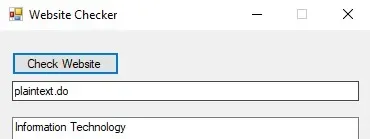
Here's the code:
using System;
using System.Collections.Generic;
using System.ComponentModel;
using System.Data;
using System.Drawing;
using System.Linq;
using System.Text;
using System.Threading.Tasks;
using System.Windows.Forms;
using System.Net;
using System.IO;
using System.Text.RegularExpressions;

namespace Whatsapp_Fortinet
{
    public partial class Form1 : Form
    {
        public Form1()
        {
            InitializeComponent();
        }

        private void btnCheckWebsite_Click(object sender, EventArgs e)
        {
            HttpWebRequest request = (HttpWebRequest)WebRequest.Create("https://fortiguard.com/webfilter?q=" + txtWebsite.Text);
            request.Method = "GET";

            HttpWebResponse response = (HttpWebResponse)request.GetResponse();
            using (StreamReader reader = new StreamReader(response.GetResponseStream()))
            {
                string result = reader.ReadToEnd();

                var match = Regex.Match(result, "Category: (.*) />");
                lblCategory.Text = match.Groups[1].Value.Replace("\"","");

            }
        }
    }
}
In my search, I couldn't find a C# library that would let me connect to WhatsApp, but I did find one in Python. I didn't want to mix both languages or build some kind of integration, so I dropped the idea of finishing it in C#. Luckily, Python and C# are the languages I speak. So without thinking twice, I decided to implement it in Python.
The library I found was this: WebWhatsapp-Wrapper, a project by Mukul Hase—I invite you to check out his work.
I read the README, but some things weren't very clear to me, and I'm the kind of person who likes to use print('variable') to see if something works or not, hehe—so I had to test it.
Installing Libraries and Dependencies
I used Ubuntu x64 for this, but you could use any distribution. The examples and commands are designed for the latest version of Ubuntu. I proceeded to install python3 and webwhatsapi. If you don't have them, you can install them using the following commands:
sudo apt install python3
sudo apt install python3-pip
pip3 install webwhatsapi
We also need to download the Gecko Driver, which allows interaction with browsers. With this driver, we can work with web.whatsapp.com and place it in a $PATH directory. Download it here.
wget https://github.com/mozilla/geckodriver/releases/download/v0.20.1/geckodriver-v0.20.1-linux64.tar.gz
tar -xvzf geckodriver-v0.20.1-linux64.tar.gz
chmod +x geckodriver
sudo mv ./geckodriver /usr/local/bin/.
With that in place, we can start coding. The code is split into two parts: the first handles the connection to Web WhatsApp, and the second identifies links and their categories.
WhatsApp Connection
We need to import the WhatsAPIDriver libraries. Open a python3 console and enter the following:
from webwhatsapi import WhatsAPIDriver
from webwhatsapi.objects.message import Message
Now we create an instance of the WhatsAPIDriver class that will let us interact with WhatsApp Web:
driver = WhatsAPIDriver(client='firefox',loadstyles=True,profile='/home/plaintext/dev/profile-whatsapp')
Important Notes:
- You can use other browsers like Chrome, but Firefox is the default.
- Loadstyles will let you see the page content with its styles. It took me a long time to figure this out because the web.whatsapp.com page was showing up incomplete without it.
- Profile will let us save the web.whatsapp.com session so we don't have to scan the QR code every time we launch the application.
Now we can check our status:
driver.get_chat_from_phone_number('18491112222')
I'll just leave that as a reference for you. You can keep exploring what other information you can pull from your WhatsApp in the WebWhatsapp-Wrapper project.
URL Category Verification
If you visit the FortiGuard page, you'll see the WebFiltering query option at FortiGuard WebFiltering. If we test, for example, http://plaintext.do, it tells us that our page is categorized as Information Technology 🙂
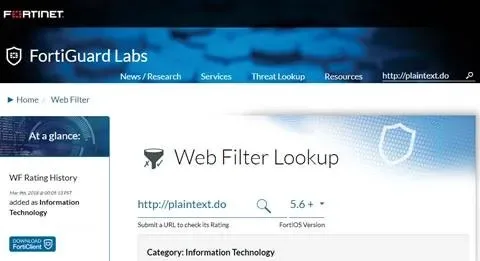
Now we need to replicate this same query in Python and print the category. We'll use the requests library. A simple approach would be:
import requests, re
url = 'http://plaintext.do'
r = requests.get('https://fortiguard.com/webfilter?q=' + url)
category = re.findall("Category: (.*) />",r.text)[0].replace("\"","")
print(category)
Here I use the re library, which allows us to use regular expressions to extract what we need from text. In this case, I'm searching for the word Category:
Another important thing we'll use regular expressions for is to extract all URLs from WhatsApp messages. For that, we'll use a Regex created by rcompton—you can check out his project urlmarker.py.
Now that we have the category, all that's left is to put it all together!
WhatsApp Protector
WhatsApp Protector—I think I went a bit overboard with the name, but development projects are like children: you give them whatever name you like best, and I liked this one.
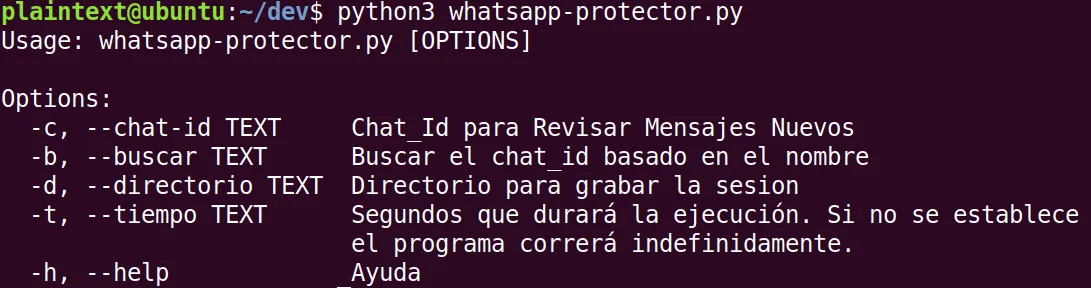
Options: Chat_Id – We need the Chat_Id to choose the conversation we want to monitor for links. I only configured one, but you can modify the code to add more.
Search – If you don't know the Chat_Id, you can use the -b or --buscar option to specify the conversation name (can be a person or group).
Time – Allows us to define how many seconds the program will run.
Directory – Used to save the session so you don't have to scan the QR code every time. The only downside is that it opens a new browser each time it starts. Before using this option, a few steps are required. Based on the guide from codemanat.
Persistent Session Setup:
1st – Open a python3 console and enter the following:
from webwhatsapi import WhatsAPIDriver
from webwhatsapi.objects.message import Message
driver = WhatsAPIDriver(client='Firefox',loadstyles=True)
2nd – Scan the QR code and close the console using CTRL + C. 3rd – Create a Firefox profile.
- In the console (bash) enter:
firefox -p - Create Profile
- Choose a name
- Select the directory (create a directory where Firefox records will be stored)
- Go to https://web.whatsapp.com and scan the QR code
- Go to https://web.whatsapp.com again and verify the session persists.
- Done.
Now all that's left is to use the program:
Chat_id Search
To search for the chat_id we use:
python3 whatsapp-protector.py -d /home/plaintext/dev/plaintext-profile -b vitilla

Chat Protection
To run the protection, just use the following—remember the -t flag is optional 😊
python3 whatsapp-protector.py -d /home/plaintext/dev/plaintext-profile -c [email protected] -t 120
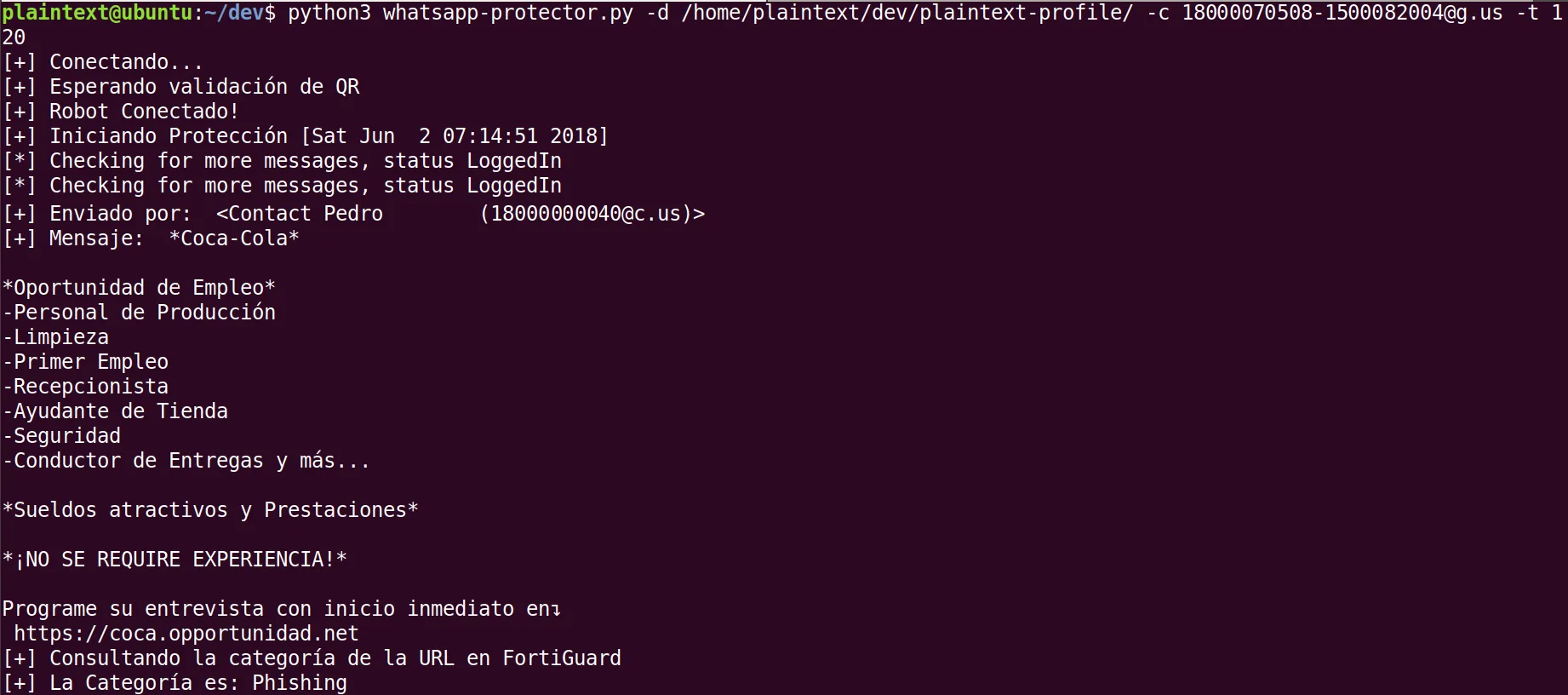
And this is how it would look in WhatsApp 😊
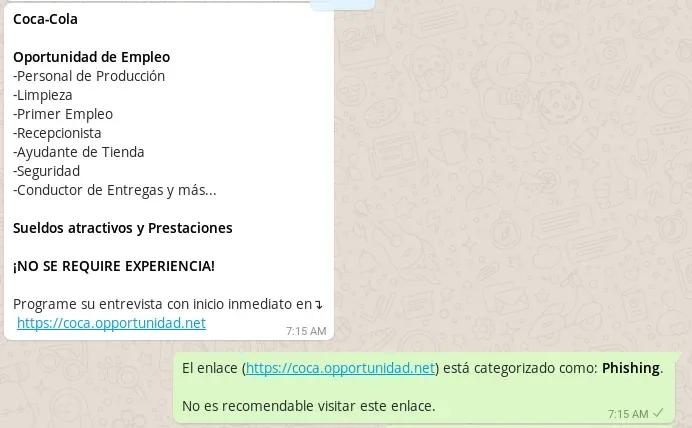
You can find the project here:
I hope you find it useful. If you have any questions or suggestions, don't hesitate to reach out.
God bless you! Serving Christ is not a task, but a relationship. Friends of God. Jn 15:15